
 In my recent efforts to get apache2 and mysql up and running on my iMac I often needed to view the hidden files in Finder. I was lucky enough to stumble across a hint that showed me exactly the commands I needed to run in terminal to view all the hidden files in Finder.
After viewing and hiding these files over and over again I realized that this would be a perfect plugin for Finder. I launched automator and found the 1 action item I needed to show and hide files in finder.
I selected “Run Shell Script” from the Utilities library and dragged it over to my workflow. I added the following text to the workflow:
defaults write com.apple.finder AppleShowAllFiles TRUE
killall Finder
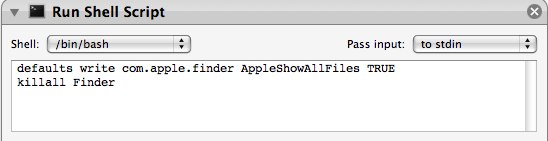
Once the code was included in the step, I saved the workflow as a Finder plugin: ShowHidden. Now to view the hidden files in finder, I simply right click (command + click) in Finder, select More, Automator, and then ShowHidden. Finder closes and then re-opens with all the hidden files and folders viewable.
To hide the files again, I created another workflow with the same “Run Shell Script” action and entered in this text:
defaults write com.apple.finder AppleShowAllFiles FALSE
killall Finder
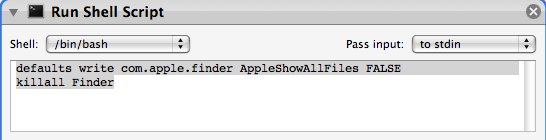
I saved it as a Finder plugin, HideHidden. To hide the files and folders again, righ click (command + click) in Finder, select More, Automator, and then HideHidden. Finder will close and re-open with the files and folders hidden again.
Now there is no need to open Terminal to view OS X hidden files in Finder.
