Tag Cloud
» Hardware
Home » Archive by category 'Hardware'

The folks over at macworld.com have written a detailed description about the old and new rules you should consider when purchasing a Mac.

One of the main themes throughout the article is that the new Intel Macs have really changed the way we should think about Apple Computers. I agree completely with the article.

In the past I was always impressed with the capabilities of Apple OS X and the standard applications that were included with the system but since Apple has moved to Intel processors I’ve purchased 5 new Macs.

533BC546-2324-4FF3-8D58-6CA5D3D31326.jpg

The Intel Chips in Apple computers provides best of both worlds for users and really makes it difficult to justify NOT buying a Mac.

I believe the continual increase in market share that Apple has seen since moving to x86 processors also supports this claim.

So, if you’re thinking about buying a new Apple Computer, Read the macworld.com article on the new rules for buying a Mac.

[Slashdot] [Digg] [Reddit] [del.icio.us] [Facebook] [Technorati] [Google] [StumbleUpon]

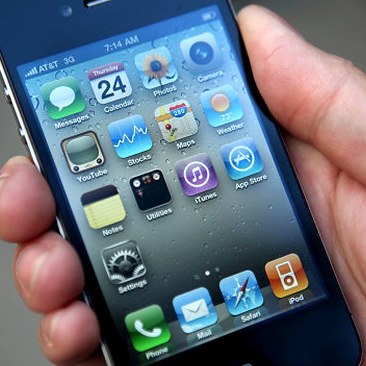
There have been a number of recent articles describing the way that consumers user their iPhone. Interestingly enough, compared to normal smartphone users iPhone users talk less and browse the web more then their counterparts.

In fact:

“iPhone owners spend the time they use their iPhones engaged in voice calls (that number is 71.7 percent for BlackBerry owners). Also, iPhone owners in the US claim to spend 12.1 percent of their iPhone time on the net (compare that to 2.4 percent for all other mobile phones on average)”

- TUAW

Sync Safari Bookmarks From Your Mac to Your iPhone & iPod Touch

If you find yourself using your iPhone and iPod Touch to browse the web more and more each day then be sure to setup your iPhone/iPod Touch to sync your Safari Bookmarks.

  1. Open iTunes and connect your iPhone/iPod Touch
  2. Select the iPhone/iPod Touch in iTunes
  3. Select the info Tab
  4. Scroll Down to Web Browser and check the box next to Sync Safari Bookmarks
  5. Click Sync and check your iPhone/iPod Touch for the updated Bookmark list

iTunesScreenSnapz001.png

Discover interesting sites while on the go and able to check back on them when you return to the larger screen comfort of your Mac. Taking your bookmarks with you has never been easier.

[Slashdot] [Digg] [Reddit] [del.icio.us] [Facebook] [Technorati] [Google] [StumbleUpon]

One of the main features that Apple has advertised with their new Macbook Air and Macbook Pro notebooks is the increased capabilities of the trackpad included with the machines.

With the new trackpad applications like iPhoto and Safari received additional navigation capabilities based on gestures conducted on the trackpad.

Safari includes trackpad capabilities that allowed you to touch three fingers to your trackpad and swipe them to the left or right and the browser will move forward or back a page based on your gesture.

Additionally gestures provided ways to zoom in on the screen, rotate pictures or scroll around the page view. Unfortunately, these new gestures do not include commands for all applications. You couldn’t use the same trackpad features to navigate in Firefox that you used in Safari.

That is until Will Henderson released his beta software that he has titled “MultiClutch“.

Multiclutch

MultiClutch is a small program that installs a system preference window that allows you to tie keyboard shortcut commands to your trackpad gestures.

Connecting the gestures to commands within an application is quick and simple:

  1. After you’ve downloaded and installed MultiClutch, navigate to the System Preferences on your Mac and click MultiClutch in the “Other” section.
  2. Click the ‘+’ to add an application, select the application you’d like to add a gesture command to
  3. Select the application in the MultiClutch menu and then click the ‘+’ below the Gesture/Key Command section
  4. Select the gesture command you’d like to use and then click the keyboard shortcut and press the keys you’d like to be tied to the trackpad gesture. (To view the keyboard shortcuts for an application, open the app and select the menu items to see what keyboard shortcuts are tied to the various menu commands
  5. Close the system preferences, open the application and test the new gesture.

Now with MultiClutch and the new Firefox 3 beta 5 I can add the trackpad gestures I use in Safari to move forward and backwards with the websites I’m viewing.

Note: Currently only applications built with Cocoa are supported. If the gestures are not working there is a high likelihood the application was built in Carbon. Firefox Users should note that the MultiClutch gestures were tested in Firefox 3 beta 5 and worked correctly. They did not work in Firefox 2.

[Slashdot] [Digg] [Reddit] [del.icio.us] [Facebook] [Technorati] [Google] [StumbleUpon]

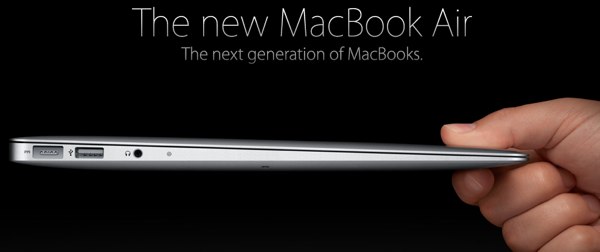
Recently, Airport Security (TSA) announced on their blog that they’ve reviewed the Macbook Air and is now comfortable with seeing the Apple notebook come through security.

After reports of a few individuals missing flights because of security hassles with new new thin Notebook without a CD/DVD drive, TSA send out notification and descriptions of the Macbook Air to its personal so that such problems wouldn’t occur in the future.

Well, Last night I had a flight to catch and originally debated on whether or not to bring the Macbook Air with me. But I had plenty of time to get through security so I figured it couldn’t hurt to bring it along.

Like usual, the security line was long, but I was able to move through the security check and slid the Macbook Air through the x-ray imagery.

At first I thought I was in trouble and would have to deal with some long security questions about my computer as a TSA officer approached me while I reached for my bag. He grabbed the back in front of mine, looked at me and said “IS THIS YOURS!?!?”

I was greatful that the bag wasn’t mine. I explained it wasn’t and the real owner stepped forward. I grabbed my Macbook Air and put it into my briefcase. I had a smile on my face as the security officer started questioning the intentions of bag owner’s use of a flash light on an air plane.

While the TSA officers have been instructed to ignore the Macbook Air as a security check, they’re still worried about flashlights.

[Slashdot] [Digg] [Reddit] [del.icio.us] [Facebook] [Technorati] [Google] [StumbleUpon]

Apple has just released an update to the Airport Utility and a firmware update to the Airport Extreme base station. This update to the AEBS will enable Time Machine to use disks attached to your base station. In order for this to work you must have the latest version of OS X (10.5.2 as of this writing). Once you update the Airport Utility on your mac, you’ll need to start up the Airport Utility. Depending on how you’ve configured your AEBS, it will notify you that there is new firmware to download and install or you may have to select “check for updates” from the Airport Utility menu.

Check for updates

Once the firmware is installed, you can then plug in your external USB drive to the base station, find your base station in the shared sidebar of finder, then open Time Machine Preferences and Select the drive and you’re done!

Wireless Airport Disk

In fact, I’m backing up this mac to my AEBS right now. Sometimes it pays to be an early adopter.

PS Remember that you have to have a disk that is formatted (or partitioned) with Apple’s File System (HFS+).

Update

Nine and a half hour later, the first backup from Time Machine completed. My Macbook Pro is a first generation with 802.11g wireless. Your mileage my vary.

[Slashdot] [Digg] [Reddit] [del.icio.us] [Facebook] [Technorati] [Google] [StumbleUpon]