
Learning the Mac refresh shortcut is one of the most important things you can learn when you transition over from a PC.
One of the most annoying things to me about switching over to a Mac was that F5 no longer did a full refresh on web pages. I do my fair share of web projects, so I’m constantly refreshing pages. For the first month of owning my Mac, I hit F5, nothing happened, and then I begrudgingly grabbed the mouse and clicked the refresh button.
In fact, by default control + f5 on the Mac does absolutely nothing. F5 itself pulls up dictation. Pressing the fn + control+f5 default behavior is to select the URL in the address bar. But if you want to refresh after that you’ll need to press enter. A few steps too many for my liking.
Interesting Articles
What Is The Mac Refresh Shortcut?
The mac refresh shortcut is command + R. This keyboard shortcut will refresh a a web page in Safari, Chrome & Firefox or any other interface that has a refresh option.
What Is The Equivalent to Windows F5 on a Mac?
As mentioned above, the Mac refresh shortcut equivalent of Window’s F5 is pressing command + R. This will refresh a page in Safari, Chrome & Firefox. However, there is a way to change settings to make F5 refresh your browser on your Mac.
Refresh with F5 on a Mac in Google Chrome
I was complaining to Dan about this and he quite easily walked me through how to make this happen. They say, “Its the little things in life”, and this is one of those little things that makes me smile when I use it. I primarily use Google Chrome, so that these instructions are for setting a new chrome refresh shortcut for the Mac. A slightly modified version could be worked out to do this in Safari (if you really want that, just leave a comment and I’ll figure out and post the exact steps).
Follow the steps below and you’ll be F5’ing it up to refresh your mac just like me.
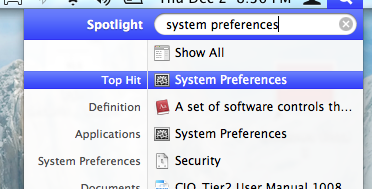
Open System Preferences (I usually use Spotlight)
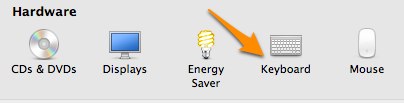
Select Keyboard
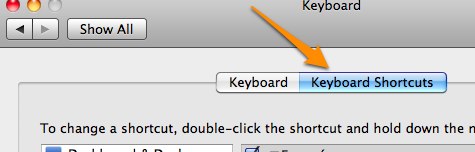
Select the Keyboard Shortcuts button at the top (Or ‘Shortcuts’ in newer versions of MacSO)
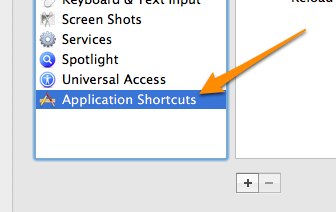
Select Application Shortcuts (or App Shortcuts) and then click the + button.
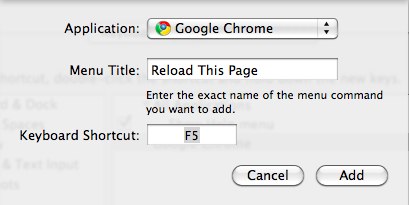
Select ‘Google Chrome’. Type ‘Refresh This Page’ for the menu title. Press F5 when in the Keyboard shortcut area. Click add.
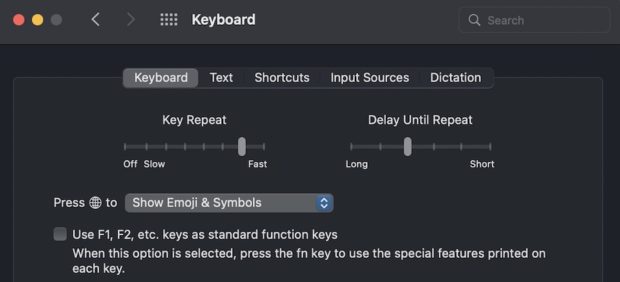
Note: on some of the newer mac Keyboards, all the function keys are secondary to Apple’s built in features like increase or decrease brightness. If you have one of these keyboards you’ll need to press the fn button to access F5. OR you can disable these keys by Selecting the ‘Keyboard’ and then checking the box Use F1, F2, etc. as standard functions keys.
Now, go straight to Chrome and refresh the page by clicking F5.
If you’ve followed the steps correctly, pressing F5 should now be a refresh shortcut on the Mac for the page in Chrome.
