
There are plenty of reasons to want to learn how to rename your Macbook and luckily you can do so in just a quick few steps. Check the steps below to see how to change the name of your Macbook.
When you first setup your Macbook it automatically selects a name for your computer. It’s usually a combination of your username and then type of Mac you purchased. For example, if your user name is “Dan” it would be something like “Dan’s Macbook”. But, for privacy or other reasons you may want to update the name on your mac.
Interesting Articles
Steps to Rename Your Macbook
If you’d like to change the name of your Mac you can do so quickly. The steps below show how to rename a Macbook:
- Open System Preferences from either the Doc or by clicking the Apple in the menu bar and then System Preferences from the drop down menu.
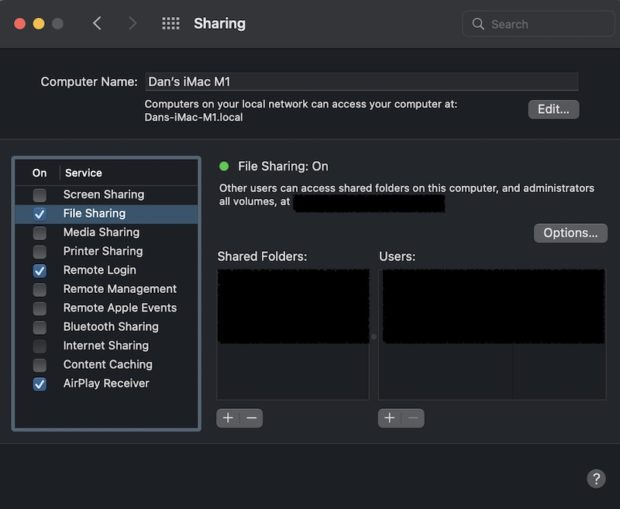
- Select Sharing
- In the Computer Name field, update it to the name you’d like for your Mac
After you’ve completed these steps, click out of the input field and you will have renamed your Mac.
Reasons To Change The Name Of Your Macbook
Now that you know how to change the name of your Macbook, here are a few additional reasons you may want to do so.
- You don’t like the name – sometimes trusting the automated naming rules just doesn’t work well
- Network wide conflicts – If you work at a place with a lot of “Brians” and you don’t want your computer to be named “Brian’s Macbook (25)”. MacOS adds a number to the end of a computer name if another computer on the network already has that name
- Home Network Identification – Sometimes you want to know which devices are on your home network. This helps make it easier than a random Mac Address.
- Setting Limits on Kids Devices – If you’re trying to limit how much time a Macbook can access the internet, this can make it easy to identify your child’s Macbook and set rules on your router.
- AirDrop – You may want to be able to accept files via AirDrop but don’t want your name publicly available to anyone looking.
How To Change The Name of Any Mac
Like changing the name to your Macbook, if you need to rename your iMac, Mac Mini, Macbook Pro, Macbook Air, Mac Pro, or iMac Pro the steps listed above will work for all Apple computers.
