
With the recent update to iMovie 09 to version 8.0.1 Apple added the ability to export video in 720p HD quality. While a standard option to export to 1080p quality HD video is not available in iMovie 09, there is a way to export 1080p video.
The steps listed below will guide you through the process of exporting video in both 720p and 1080p. Both high quality video types can be captured with a High Def Camcorder.
Exporting video from iMovie 09 in HD – 720p
To export video out of iMovie 09 in 720p HD quality:
- Ensure that you have at least the 8.0.1 version of iMovie 09. The feature to export in 720p was not available before this release.
- Open iMovie and select the video project you’d like to export
- From the menu bar select Share and then Export Movie.
- Next, select HD from the Export options. This will export the video in 1280×720 or 720p quality. As indicated, this quality video will work with Youtube and on your computer.
- Select where on your computer you’d like the video to export and then click Export.

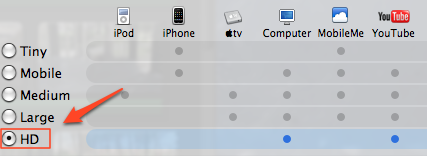
iMovie 09 will export your video in 720p and the movie file will be available where you saved it.
Exporting your video from iMovie 09 in HD – 1080p
A similar process but with a few different steps will guide you through exporting your video in 1080p quality.
- Open iMovie and select the video project you’d like to export
- Select Share from the menu bar and then Export using QuickTime…
- Select the name of the file you’d like to save the video as, set Export to Movie to MPEG-4, and then click Options.
- On the Options Window, set the File Format to MP4, the Video Format to H.264, the Data Rate to 16200, and the Image Size to 1920 x 1080 HD. After the options are selected click ‘ok’ to return to the export menu.
- Click Save on the ‘Export with Quicktime’ menu and your video will be exported in 1080p format.


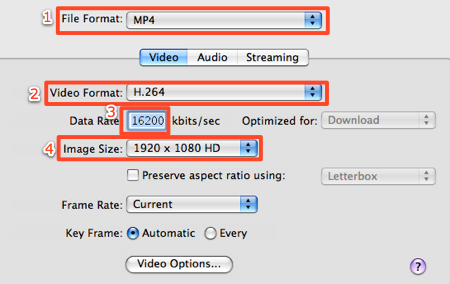
To achieve this high quality video, your original source video must be recorded in 1080p quality. The video size using the H.264 format will be compressed but should maintain much of its original quality.
If you’re having difficulty with interlace issues, see this guide on exporting HD video from iMovie 09 using JES Deinterlacer.
