As it becomes more common for a home to have more than one computer, the need to quickly and easily access shared network drives becomes more important. Additionally, network hard drives are more easily available and at lower costs that allow multiple computers to write to and share information with others on their home networks. For example, this 2 TB Network Hard Drive is quick and easy to setup on a network and comes with a large 2TB hard drive.
The process to mount a network drive in OS X is quick and simple.
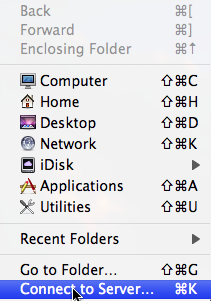
- First you’ll need to mount a network drive. Select Finder and then GO from the menu bar. Select “Connect to Server…”
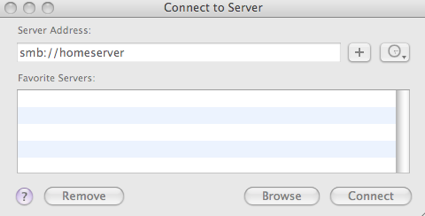
- Enter the location of the network drive (if its on a Windows PC, it will be an SMB shared folder) and click connect. Depending on your sharing settings, you may need to enter a username and password to connect to the network drive.
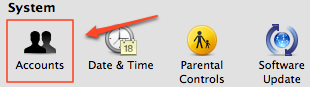
- After the drive is mounted, it should appear on your desktop. Open System Preferences and Select Accounts
- Next, select your user account and then the Login Items tab. Select the network drive that is mounted to your desktop and drag it to the Login Items window in System Preferences >> Accounts.
- Check the Hide box if you don’t want the window of the mounted drive to open in Finder on each boot up


Your network drive should now mount to your desktop each and every time you login to your Mac. If your network drive is not available, the start up time may take a bit longer as your Mac looks for the drive.


38 Responses so far.
OS X Firewall « BeginnerPC : Tips , Tricks & Tutorials
September 26, 2009 at 8:25 am[...] Mount a Network Drive in OS X On Startup As it beco [...]
Leon
October 4, 2009 at 12:08 amIt doesn't work on 10.3.9, is there a minimum version?
Dan
October 4, 2009 at 10:27 amI haven't tried on 10.3.9 and don't have that version installed to test. Anyone else?
Jonathan Frary
November 4, 2009 at 3:41 amThe hide checkbox doesn't work for me for some reason, any ideas. running snow leopard. MB
Jack
November 17, 2009 at 3:26 amJust click the “+” button to add your network drive there under the “Login Items” for Snow Leopard
Allen
December 3, 2009 at 9:29 pmTHANK YOU! THANK GOD! It was so friggin’ hard to find this gem of info on the web, and you totally helped me out! many many thanks!
Pete
January 11, 2010 at 6:50 amTotal respect. Works a charm. Thanks, thanks, thanks.
Maelvon
March 25, 2010 at 4:22 amThe "Hide" checkbox doesn't hide the Finder's windows to show up at boot (OSX 10.5), any idea, tips?
Thomas
March 28, 2010 at 6:01 amWorks well, except if you have more than one user who wants to use the same drive. Then OSX will start mounting the same drive several times and all your nice scripts get confused…
Wii
April 8, 2010 at 8:47 pmThanks! This little tutorial helped me a lot!
Petert
April 21, 2010 at 7:54 pmWhen I try to save files to the Network drive, I get this message "The Finder can’t complete the operation because some data in “MYBA CONTRACT Revised 2009.pdf” can’t be read or written.
(Error code -36)" anyone have an idea on why & how I can resolve the issue, the filename transfers however no content……
gers1978
May 22, 2010 at 4:42 pmSnow Leopard 10.6.3 here, and I can confirm the "Hide" checkbox has no effect, the Finder window opens every logon whether it's checked or not.
Livorno Web Design
July 1, 2010 at 5:37 amThanks great help !
Jamie Duncan
August 15, 2010 at 1:20 pmWhat happens if you're not on that network when you logon?
Dan
August 15, 2010 at 1:31 pmJamie – It will look for the network drive, and then tell you it couldn't find it to connect.
Nate
March 16, 2013 at 4:57 pmI find it annoying that each and every time I'm using my MBP when I'm not home it tells me that it could not find the Network drive. Isn't it possible to have the system mount it whenever it is available and otherwise fail silently?
Doug
December 15, 2010 at 11:18 amWorks like a charm! Thanks it was driving me nuts and I have a Mac hating IT guy
Thanks!
DXB
January 8, 2011 at 7:16 amThe hide checkbox doesn't work for me as well. Running snow leopard 10.6.6. Any Ideas? Just want the hard drive to mount, without finder window to open. Thanks!!!
h4vok
January 15, 2011 at 6:53 pmI'm running 10.6.6 and hide doesn't work for me either. You need to write a script.
Script:
tell application "Finder"
delay 0.3
try
mount volume "smb://IP or ComputerName/yourVolume1"
mount volume "smb://IP or ComputerName/yourVolume2"
on error
display dialog "A Problem Occurred" buttons {"OK"} default button 1
end try
end tell
Replace "IP or ComputerName" with the targets IP address or name. Replace "yourVolume" with the shared folder. Save as an Application and follow instructions from the article. Hope this helps.
Nothing works
March 13, 2011 at 11:05 pmI tried this script and it doesn't work. Error in mounting message and it actually shows the A Problem Occured message in which I have to press OK. Is there no way to for Snow Leopard to automatically see my Windows machines? 10.5.8 had no issues with this. Argh
It works!
March 13, 2011 at 11:08 pmHeheh My fault. It works. I mispelled the volume. Great work around. Really appreciate it. But I'd still like Snow Leopard to be able to discover my windows machines automatically.
Thanks again
Dave
June 10, 2011 at 5:50 amWorks Perfect – Thanks
Richard
July 13, 2012 at 11:51 pmLove it, i modified the script to mount the 4 shares on my Synology DiskStation on login:
tell application "Finder"
delay 0.3
try
mount volume "afp://USER@DiskStation._afpovertcp._tcp.local/music"
mount volume "afp://USER@DiskStation._afpovertcp._tcp.local/Users"
mount volume "afp://USER@DiskStation._afpovertcp._tcp.local/video"
mount volume "afp://USER@DiskStation._afpovertcp._tcp.local/photo"
on error
display dialog "A Problem Occurred" buttons {"OK"} default button 1
end try
end tell
The volume names can be pulled with CMD-I from Finder.
borscht@gmail.com
November 10, 2012 at 10:04 amSeems to take a bit longer to mount, but no Finder windows. Thanks.
Sherwood
February 3, 2011 at 10:56 amFalse promises. I want it to mount on BOOT. To be there BEFORE anyone has logged in.
Lee
April 20, 2012 at 6:51 amI too would be interested in doing this…. Anyone have any ideas?
Vitaly
August 9, 2011 at 12:57 amHello. How to hide warning when you in other network and external disk is unavailable,
this is very annoying.
Thanks
Rebecca Stolper
April 3, 2012 at 7:39 pmI'm not sure if this comment feed still gets checked, but here goes. If I use that process to load a drive that I access remotely (it sits on my home network), will it mount the drive regardless of the network I am on? The server address will remain consistent so in my head it seems like it might. If not then on to the next one! Thanks
YouDoMeIDoYou
May 17, 2012 at 11:36 amhope this works till next reboot – thanks for that little how-to
Jorge
June 1, 2012 at 2:27 pmWhen I connect to the shared drives upon reboot, my computer opens up the windows for each drive. This wouldn't be a big deal if I didn't have 5 or so shared drives that I have to close every time I reboot. Any suggestions?
Mac - Network drives
June 15, 2012 at 6:45 am[...] How to Mount a Network Drive in OS X on Startup | Maciverse Mac App Store – Folder Sync (Can't be done natively, needs a third party app). I don't want to insult the dead, but if that guy is alive he's a ****. Reply With Quote + Reply to Thread [...]
DJivor
July 16, 2012 at 11:45 pmI'm trying to setup an iTunes server, using a Promise Pegasus 12TB R6 connected via Thunderbolt to Mac Mini , this is then connected to a network via Ethernet and to a iMac and apple TVs
In iTunes on the iMac the Library on the Pegasus is added as a shared library.
I've added iTunes in User account/ Login Items tab, so that iTunes starts as soon as the iMac boots.
Secondly in Login items I've added the mounted Pegasus drive.
When the iMac and iTunes is booted it sometimes does not make the connection the Mac Mini and Pegasus, the result being that iTunes loses its library and requests that you need to locate it Library or set up a new one.
How do I resolve this?
Does the Login order matter in log in items? Is it similar to the BIOS start up order on a Windows Machine?
Any help would be appreciated
riz
July 25, 2012 at 10:39 pmI followed the instructions and checked off hide so that the finder window for the mounted window wouldn't show up at every boot. It does not work. It shows up at every boot up. Very annoying. Anyone found a fix for this?
Roger
July 29, 2012 at 3:50 pmRead the comments from h4voc or richard
Martin
December 14, 2012 at 7:44 amThese instructions are for mounting a drive on LOGIN not STARTUP. I need to mount a shared folder on a Windows server every time my Xserver Reboots without a login. How is that done?
Dave
March 13, 2013 at 7:13 pmWas able to adapt this to the current OS. Thank you.
Iconia
March 14, 2013 at 6:39 amThis is exactly what i was looking for . thanks for sharing this great article. I am always searching for informative information like this. Nice and quite informative post. I really look forward to other post
ip changer
April 13, 2013 at 5:53 pmHey there! This is my 1st comment here so I just
wanted to give a quick shout out and tell you I truly enjoy reading your articles.
Can you recommend any other blogs/websites/forums that cover the same topics?
Thanks for your time!
Leave a Reply
Get The Latest From Maciverse
Advertisement
Popular Articles
Apple Topics
Recent Posts
Copyright © 2012 Maciverse.com. All rights reserved.
Site powered by Go Fish Digital