
iWeb, Apple’s website creation application that comes with each new Apple computer is designed to allow users to quickly create websites and blogs. While the process is quick and simple it also lacks some of the more complicated features that you see in many blog sites today.
If you’ve created an iWeb blog but want to add features and a bit of complexity to your site, moving to WordPress
WordPress is one of the most popular free website and blogging software options that allows you to create custom blogs with all the features you like. Additionally, setting up WordPress so that it is easily indexed by Google and other search engines is easy, something that iWeb has never done well.
The rest of this article will walk you through the process of moving your blog from iWeb to a new WordPress install.
SETTING UP WORDPRESS
Before you move your site to WordPress you need to get it installed on web server. You can download the files you need to then upload and customize to your webserver at wordpress.org.
If you don’t have a domain or website up and running yet and want to host your site on WordPress you should consider taking advantage of our FREE WORDPRESS INSTALLATION service that we’re offering for a limited time. We’ll get you up and running in 24 hours so you can start importing your iWeb Blog to WordPress.
After you’ve downloaded the file and want to install WordPress yourself you can follow the instructions below:
“Here’s the quick version of the instructions, for those that are already comfortable with performing such installations. More detailed instructions follow.
- Download and unzip the WordPress package, if you haven’t already.
- Create a database for WordPress on your web server, as well as a MySQL user who has all privileges for accessing and modifying it.
- Rename the wp-config-sample.php file to wp-config.php.
- Open wp-config.php in your favorite text editor and fill in your database details.
- Place the WordPress files in the desired location on your web server:
- If you want to integrate WordPress into the root of your domain (e.g. http://example.com/), move or upload all contents of the unzipped WordPress directory (but excluding the directory itself) into the root directory of your web server.
- If you want to have your WordPress installation in its own subdirectory on your web site (e.g. http://example.com/blog/), rename the directory wordpress to the name you’d like the subdirectory to have and move or upload it to your web server. For example if you want the WordPress installation in a subdirectory called “blog”, you should rename the directory called “wordpress” to “blog” and upload it to the root directory of your web server. Hint: If your FTP transfer is too slow read how to avoid FTPing at : Step 1: Download and Extract.
- Run the WordPress installation script by accessing wp-admin/install.php in your favorite web browser.
- If you installed WordPress in the root directory, you should visit: http://example.com/wp-admin/install.php
- If you installed WordPress in its own subdirectory called blog, for example, you should visit: http://example.com/blog/wp-admin/install.php
That’s it! WordPress should now be installed.”
The most difficult process of the installation is setting up the database that will store all your blog data for you, but your webhosting provider should be able to assist you if following the guide linked to above is not enough information.
Once you’ve finished installing WordPress you’ll need to get ready to to import your iWeb Blog entries.
PREPARE WORDPRESS FOR AN iWEB IMPORT
 Now that you’ve finished installing wordpress you’ll need to navigate to the wordpress login page and login with the admin account created for you during setup. Once you’ve logged in, I suggest creating another account with your “Posting” name so that articles you publish in the future will be listed as something you created.
On the WordPress Management page, navigate to Tools and then click Import in the drop-down list that appears below tools. You’ll see that there are a number of other blogging software tools that wordpress lists as options for imports but that iWeb is not included.
Fear not, one option that is listed will allow you to import all of the articles you’ve previously created in iWeb. But before we do that we need to make sure that we have the iWeb files ready for import into WordPress.
PREPARING iWEB FILES TO IMPORT TO WORDPRESS
Since you’ve been using iWeb for your previous blogging efforts you you’ve already created a number of posts for your blog. To prepare those posts to be imported into WordPress you need to export your iWeb site to a folder.
- Open iWeb
- Select the Blog Site you plan to import into WordPress
- Click File and then Publish to a Folder
- Save the folder to your desktop so that you can access it easily.
Like most new website applications, iWeb has built in RSS support. We’ll use the RSS file that is created in iWeb to import your blog into WordPress. Since we published to a folder on the desktop we can find the RSS feed for the blog in that folder.
IMPORT YOUR iWEB BLOG TO WORDPRESS
Navigate back to the admin page for your new WordPress Install and follow these steps:
- click again on Tools and then Import.
- Select RSS
- Click Browse next to choose a file
- Select your desktop and then the folder you exported your iWeb Blog to
- Open the folder, and then the Blog Folder inside it.
- Locate the rss.xml file, select it, and click open
- select upload file and import
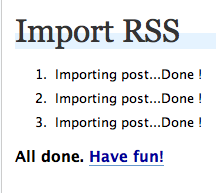
At this point wordpress shall import the posts 1 at a time and show the results with “1. Importing Post… Done” for each post in the rss feed file you have for your blog. When this has finished click the View Site link on the WordPress Admin site and you’ll see the results of your import from iWeb into WordPress.
NOTE: Not all formatting and image link structure always imports correctly. You may have to adjust the format of some of your posts to make them look the way you like. Additionally some picture images or links may not have transfered over completely and you’ll have to update their internet linkage.
CONCLUSION
Even though everything doesn’t import across with the same formatting that you set in iWeb, this is a way to import your iWeb blog to WordPress so that you can make your site more Search Engine (SEO) friendly and have additional customizable features. Be prepared to make adjustments to links and images in addition to restructuring the format of some of your posts. These adjustments are often just a few clicks from the WordPress Admin page.
Need Help? Let us setup WordPress for you. Its FREE and will help you get up and running on your own domain with a powerful WordPress site.
if you enjoyed this article, please subscribe to our RSS feed so that you don’t miss future hints, tips, and reviews.
