
If you’ve had trouble getting your USB pnp sound device to automatically be enabled in MacOS you’re not alone. Unlike other operating systems, MacOS does not automatically enable USB sound devices such as Headsets when they are inserted into your Apple computer.
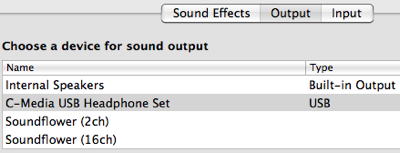
To be able to take advantage of USB pnp headsets or other third party USB sound devices you’ll need to enable them. To enable USB sound devices:
- Open System Preferences
- Select Sound
- Click the output tab
- Select the Headset or sound device of type USB
How to enable a USB Microphone in MacOS
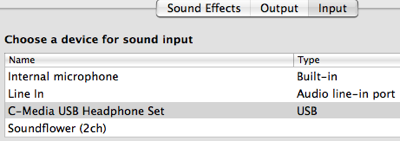
Like USB headsets for sound, you’ll also need to enable the USB microphone in MacOS if you’d like to use it instead of the built in internal microphone. To enable a USB Microphone in MacOS:
- Open System Prefences
- Select Sound
- Select the Input tab
- Select the Headset or sound device of type USB.
After setting the sound system preferences to the USB device for both Output and/or Input, your USB sound device should be enabled and functioning on your Mac.
