
Like all web browsers, Safari keeps track of the websites you’ve visited and when you went to them in the Safari History section of the menu bar. This can be very helpful if you’re trying to track down websites you’ve been to but can’t seem to find again. The steps below can help you recover deleted history on your Mac.
Restoring Safari History
If for some reason after you’ve cleared your Safari history you discover you can’t find a website you know you visited 3 weeks ago, Time Machine is there to help. If you haven’t already gotten an external hard drive be sure to do so to help you stay backed up. For this restore option to work you’ll need to have Time Machine enabled and setup for the time period you’re trying to restore your safari browsing History
How To Restore your Safari Browsing History on a Mac:
- Close Safari and Open Finder
- Select your user account under Places (There will be a Home icon next to it)
- Open the Library folder, and then Safari folder. If you don’t see a library folder, it’s because it’s hidden. To view hidden files in Finder you need to press command + Shift+ period.
- Open Time Machine – Time Machine will open displaying the Safari folder in Safari you’ve navigated to
- Select the date you’d like to restore your browsing history from
- Select the History.plist file and click restore – A dialog box will open asking you if you want to proceed – Click REPLACE
- Open Safari and click History on the menu bar
If the restore was successful, you should see today’s history plus the date you restored from below it. Navigate down to the Date and the history of sites you visited on that date will be displayed.
Exclude Safari History From Time Machine Backups
Now that we’ve showed how easy it is to restore your browsing history… you may want to keep that information as private as possible.
To keep Time Machine from backing up Safari History:
- Command Click (right click) on Time Machine in the Dock and select Time Machine Preferences…
- Click Options
- Click the + button
- Navigate to your User folder, Library, and then Safari
- Select History.plist and click the Exclude Button (To keep everything in Safari Private, select the Safari Folder and click exclude)
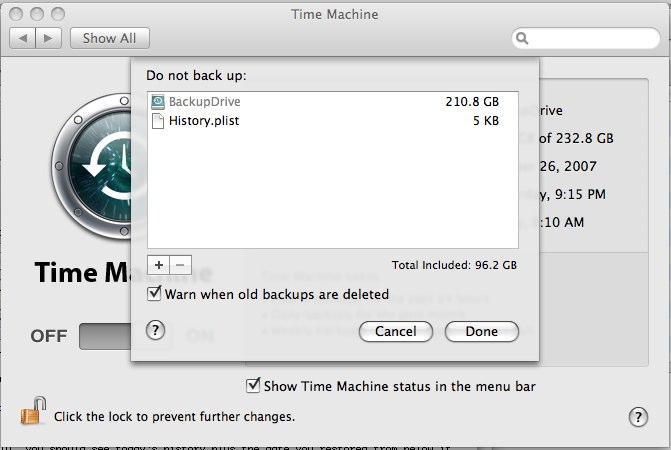
This should add history.plist or all your Browsing personal information out of Time Machine backups. This, combined with Safari’s Private Browsing feature will allow you to browse the web without anyone being able to trace your steps.
